ARCOOKIE User Guide
Find what you need quickly, question by question.
Getting Started with ARCOOKIE
ARCOOKIE is an AI-powered AR content platform: shoot with your camera or type a prompt, and AI turns it into 3D content you can view instantly in augmented reality.
QWhat is ARCOOKIE?
Take a photo with your mobile camera or type a prompt, and AI generates 3D content you can view instantly in augmented reality (AR). Finished content can be viewed in mobile AR, shared as hotclips, and expanded into VR/MR show & exhibition experiences.
The key is that it doesn't stop at “viewing” — you create on the spot. The main stream is Shoot/Type → AI generation → Instant AR view → Hotclip share → VR/MR show & exhibition.
QWhat can I do in each environment? (Mobile / PC Web / VR·MR)
| Environment | Main purpose | Key features |
|---|---|---|
| Mobile app | The core place to instantly view and share AR made from camera shots and text | AI AR creation (photo/text), AR viewing, hotclip recording, in-app purchase |
| PC Web | A workspace to produce and manage content | Make3D, Text3D, AR Studio, gallery management, AR board printing, exhibition map editing |
| VR/MR devices | Expand mobile-made content into spatial show & exhibition experiences | Exhibition-map viewing, virtual galleries, showrooms, education spaces, performance experiences |
Basic Terms
QWhat basic terms should I know?
| Term | Description |
|---|---|
| Points | The usage unit deducted when generating content or using some features. Top up via subscription or extra purchase. |
| AR marker | Unique recognition data inside an AR board. When the camera recognizes it, the linked AR content runs. |
| AR board | An image linked to AR content. Print it or show it on a screen, then point your camera at it to reveal a 3D model or music. |
| Board map / Exhibition map | A layout that places multiple AR boards in one space — usable as a gallery, showroom, or classroom. |
| Hotclip | A short video recorded from an AR screen. You can save it or share it to social media. |
| Public / Private | Public content is visible to others; private content is visible only to you or people with the link. |
ARCOOKIE Main Stream
The core flow starts on mobile: shoot or type, AI creates, you view it instantly in AR, then share and expand to VR/MR.
QWhat is the overall flow (5 steps)?
| Step | What you do | Result |
|---|---|---|
| 1. Shoot/Type | Photograph a subject, or type the scene you want | A real object or your imagination becomes the starting point. |
| 2. AI generation | AI helps generate 3D/AR content from your photo or text | Create 3D content without modeling skills. |
| 3. Instant AR view | Once done, open AR view right in the app | See what you just made on top of the real space. |
| 4. Record & share | Record the AR screen as a hotclip and share via link/social | From personal viewing to promo, education, and exhibition. |
| 5. VR/MR expansion | Connect finished content to an exhibition map or VR/MR space | It becomes an immersive show & exhibition experience. |
Sign Up & Login
QHow do I sign up?
On the sign-up screen, enter your name, email, password, and password confirmation, then agree to the required terms to create an account.
QHow do login and auto-login work?
Log in with your email or ID and password. In the mobile app, choose “Keep me logged in” to sign in automatically next time.
QIs social login available?
In the mobile app you can use configured social accounts such as Kakao, Google, Naver, and Facebook. After social authentication, you return to the app automatically.
QI forgot my password.
On the password-reset screen, enter your email or ID to receive a reset email, then set a new password.
QAre web and app accounts linked?
Log in with the same account and your content, points, subscription, and storage are synced across web and app.
Viewing AR Content
QHow do I view content from the AR list?
- Open the AR list on the mobile app home screen.
- Use the All · My list · Public list · Category filters to find content.
- Select a card to run the AR content.
QHow do I scan an AR board to view?
- Prepare a printed AR board or one shown on a screen.
- Point the app camera so the whole AR board is visible.
- Once recognized, the linked 3D model appears on the board.
QWhat is the role of mobile AR viewing?
The mobile app runs and demonstrates content that was set up in AR Studio. Position, rotation, size, and background music of 3D models are set and saved during production in AR Studio on PC.
- Recognizing an AR board runs the content linked in AR Studio.
- View finished AR on the real space and demonstrate it to an audience.
- If needed, record and share the demo as a hotclip.
- Close the AR view with the close button.
QAR isn't showing up well.
If the AR board looks blurry or cropped, recognition can fail. Light the board clearly and adjust so the entire board fits within the screen.
Creating AR with AI on Mobile
Without a PC, camera shooting, text input, AI generation, and instant AR viewing all flow together.
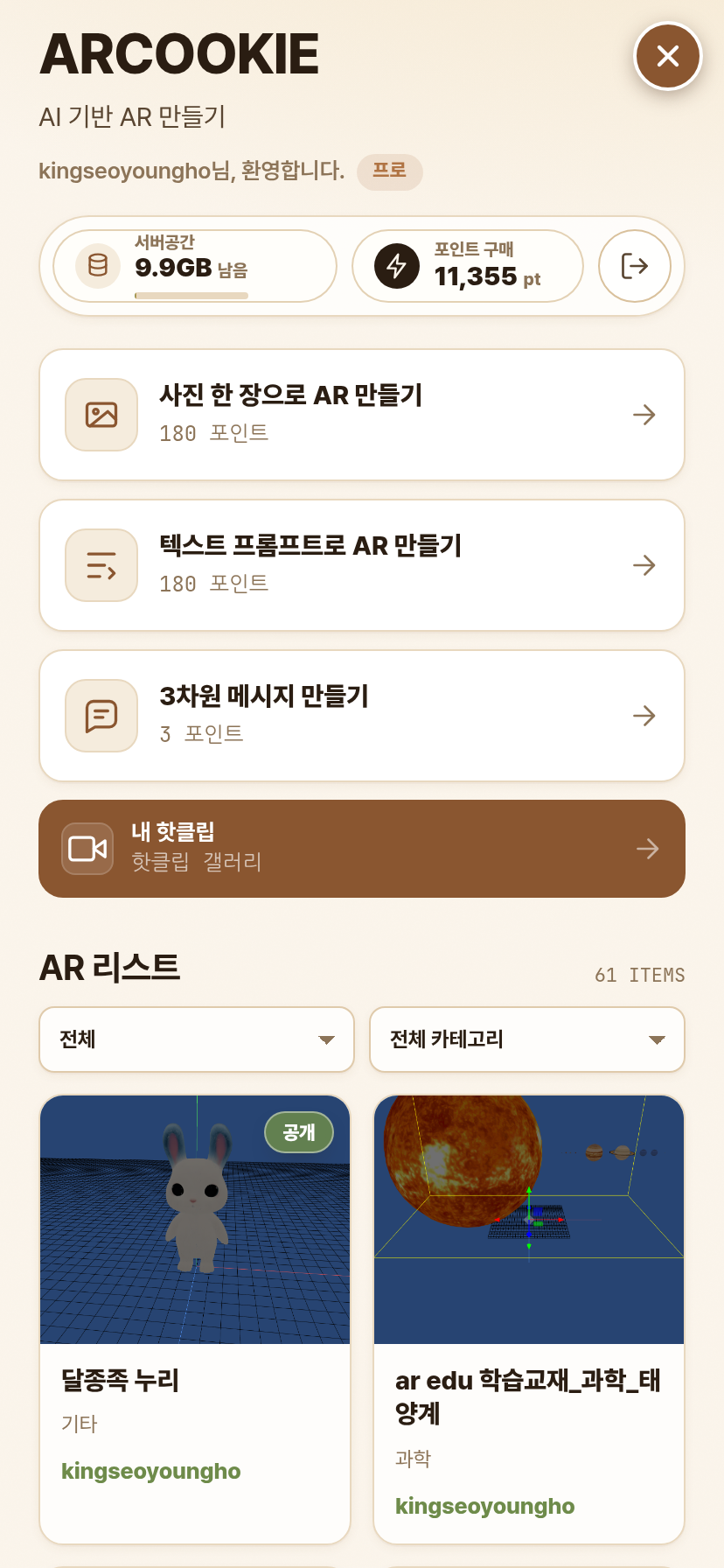
QCan I create AR content with just my phone?
Yes. From “Create AR” on the app home, you can produce content right there. The creation modes are:
| Mode | Description | Recommended for |
|---|---|---|
| Create AR from camera/photo | AI converts a shot or chosen photo into 3D | Turn an object/artwork/character/product in front of you into AR |
| Create AR from multiple photos | More stable 3D generation from multi-angle photos | Capture real products or 3D shapes more accurately |
| Create AR from text | Type what you want and AI generates the 3D | Bring an imagined subject to AR without any image |
| Create a 3D message | Turn typed characters into 3D lettering | Exhibition titles, celebratory phrases, brand slogans in AR |
QWhat are the generation steps?
- Tap the “Create AR” button on the app home.
- Choose a mode: camera/photo, multiple photos, text, or 3D message.
- Shoot or pick a photo; for text mode, describe what you want to make.
- Start generation and watch the progress.
- When done, view it instantly in AR and, if you like, record/share a hotclip.
QDoes creating cost points?
AI generation and some production features may require points. If your balance is insufficient, the create button becomes unavailable and a top-up notice appears. Check the exact point cost on the points screen in the app or web.
Recording & Sharing Hotclips
QHow do I record a hotclip?
- Run the AR content.
- Press the record button.
- Choose background music if you like.
- When recording ends, set the title, description, visibility, and thumbnail.
- Save it to find it in “My Hotclips”.
QHow do I share a hotclip?
- The mobile app can use the OS native share feature.
- Share to available apps such as KakaoTalk, Messages, Mail, and social media.
- Where sharing is unavailable, the link is copied to the clipboard.
- For public content, the share link may show a thumbnail and title.
QAnything to check before publishing?
Setting a hotclip to public makes it visible to others. Please confirm there are no privacy, portrait-rights, or copyright issues before publishing.
Managing My Content & Visibility
QWhere do I find my content?
Log in with the same account on the mobile app and PC web and your content, points, subscription, and storage are synced. View PC-made content in the app, and manage app-made content on PC.
QHow do I set public / private?
| Setting | Meaning | Recommended for |
|---|---|---|
| Public | Visible to others via the public gallery or a share link | Promotion, exhibition, portfolio, social sharing |
| Mobile public | Content published primarily in the app | Content you want app users to experience |
| Private | Visible only to you or people with the link | Work in progress, internal review, class assignments |
QWhat about editing and deleting?
- You can edit content you registered.
- Visibility can be changed later.
- Deleted content may not be recoverable, so confirm before proceeding.
Points & Subscription
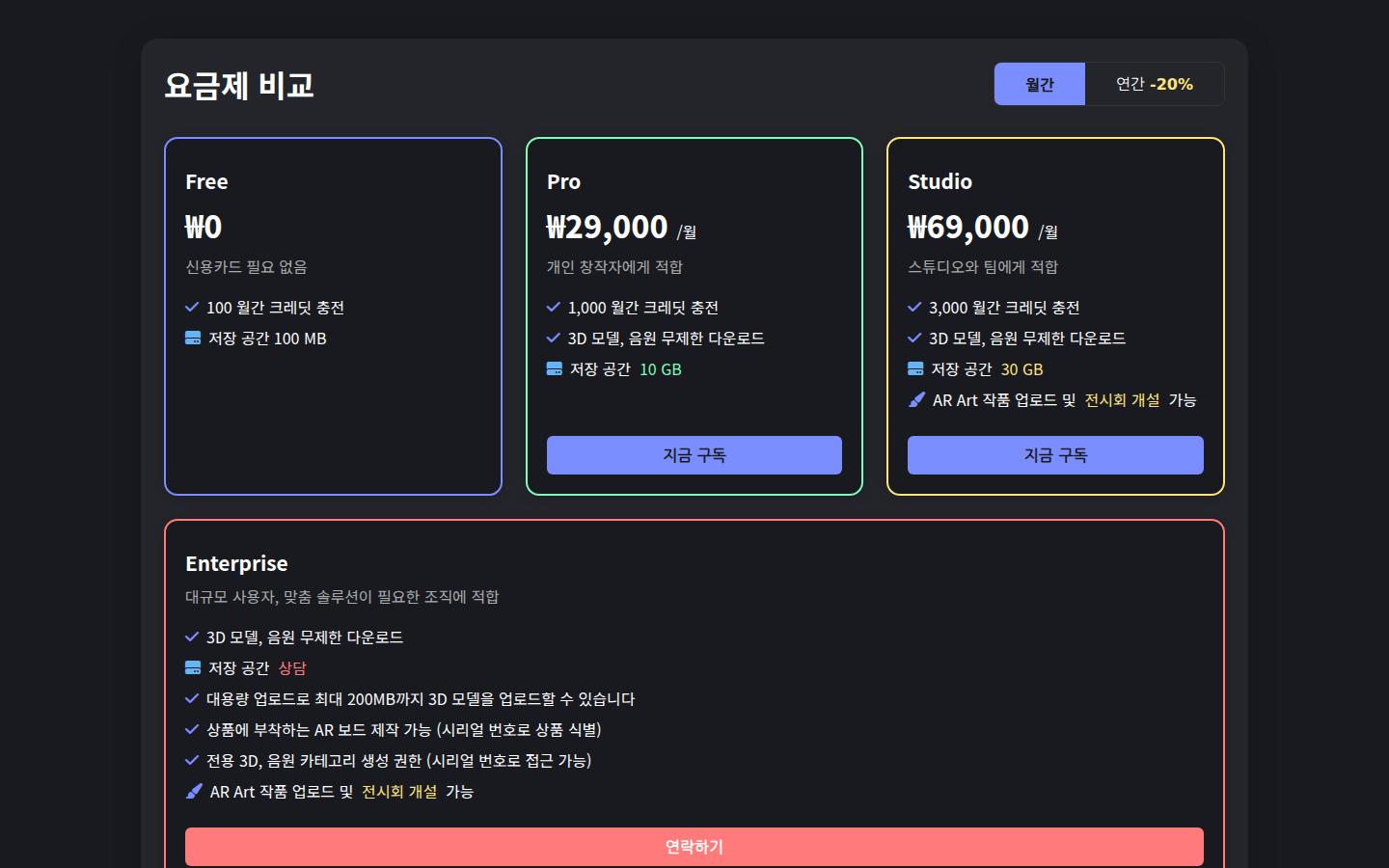
Point policies may change by operating policy, so please check the latest notice in the app or web before paying.
QWhat types of points are there?
| Type | Description |
|---|---|
| Monthly points | Granted monthly by subscription or membership tier; generally used within that month. |
| Welcome points | A one-time 200 points after you verify your email. Whatever is unused 3 months after the grant expires. |
| Extra purchased points | Points bought separately, used when monthly points run out. |
| Subscription | Paid plans like Pro or Studio give more points and features. |
| Restore purchases | Re-checks unreflected purchases when you log in with the same account after reinstalling or switching devices. |
QWhere are points used?
- AI 3D/AR generation from camera/photos
- AI 3D/AR generation from text, and 3D lettering
- Saving new 3D objects, audio, or AR boards added in AR Studio
- Renewing AR marker validity
- Monthly upkeep for storage beyond your plan (10 points per GB)
QHow do I pay or cancel a subscription?
Cancel mobile subscriptions in the App Store or Google Play subscription settings. Even after canceling, benefits may continue until the end of the paid period.
Creating on PC Web
If mobile is for making quickly and viewing instantly, PC web is the environment for more detailed production and management.
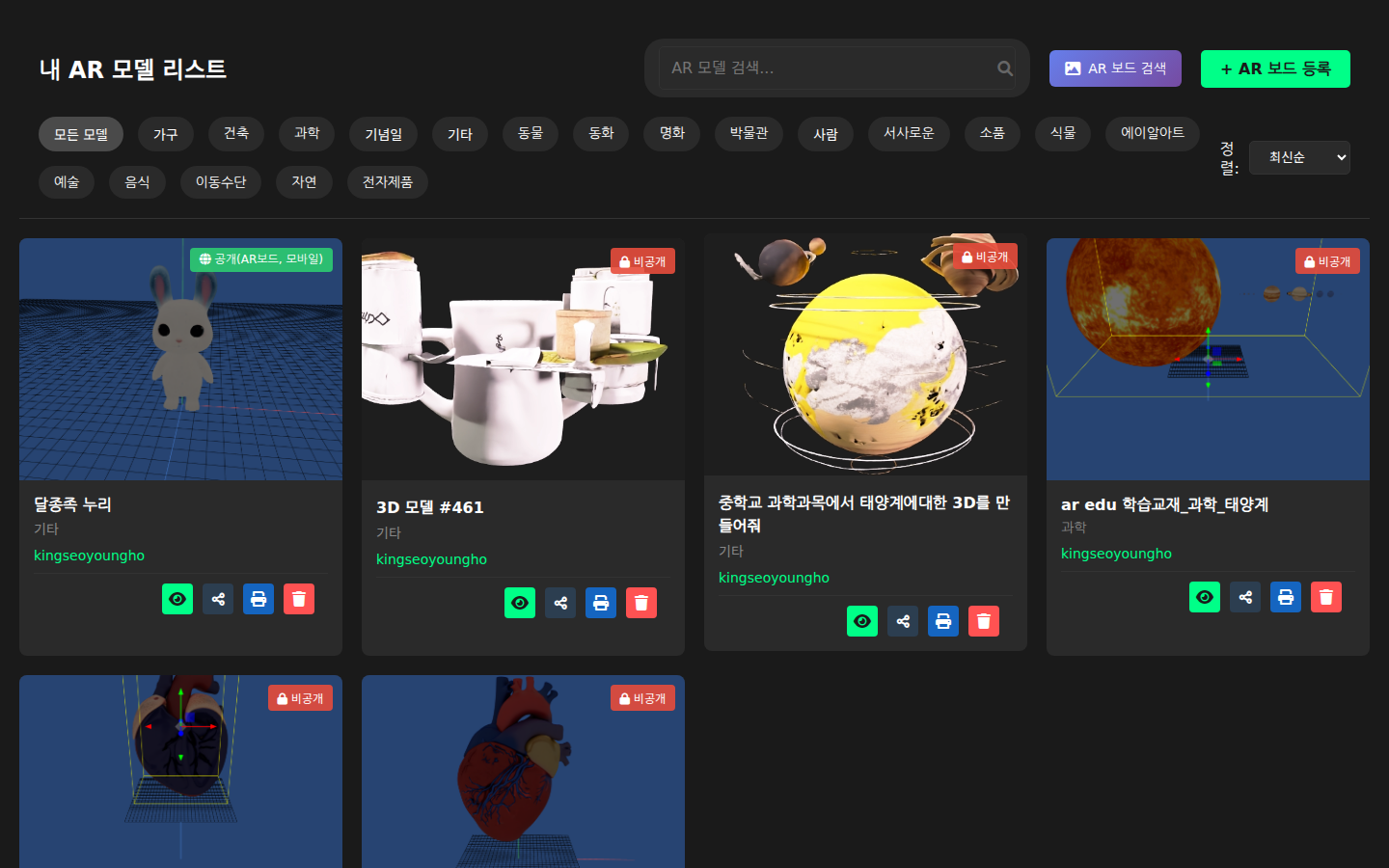
QWhat features are on PC web?
| Feature | Purpose |
|---|---|
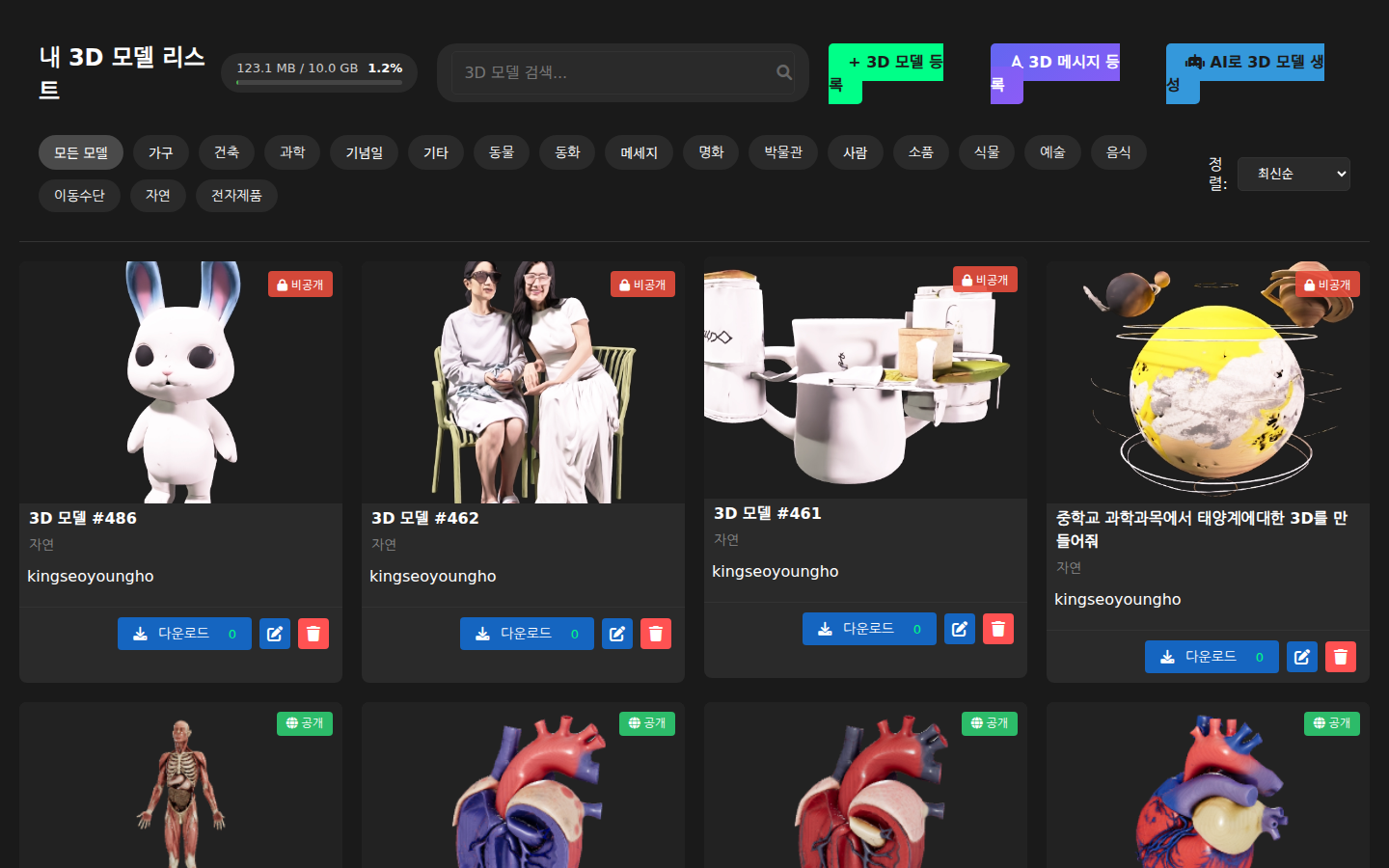
| 3D Gallery | Register and manage 3D models (GLB, GLTF, FBX, etc.) |
| AR Gallery | Manage and share AR content linked to AR boards |
| Art Gallery | Showcase and share art & design works |
| Sound Gallery | Register music/sound effects and use them in AR content |
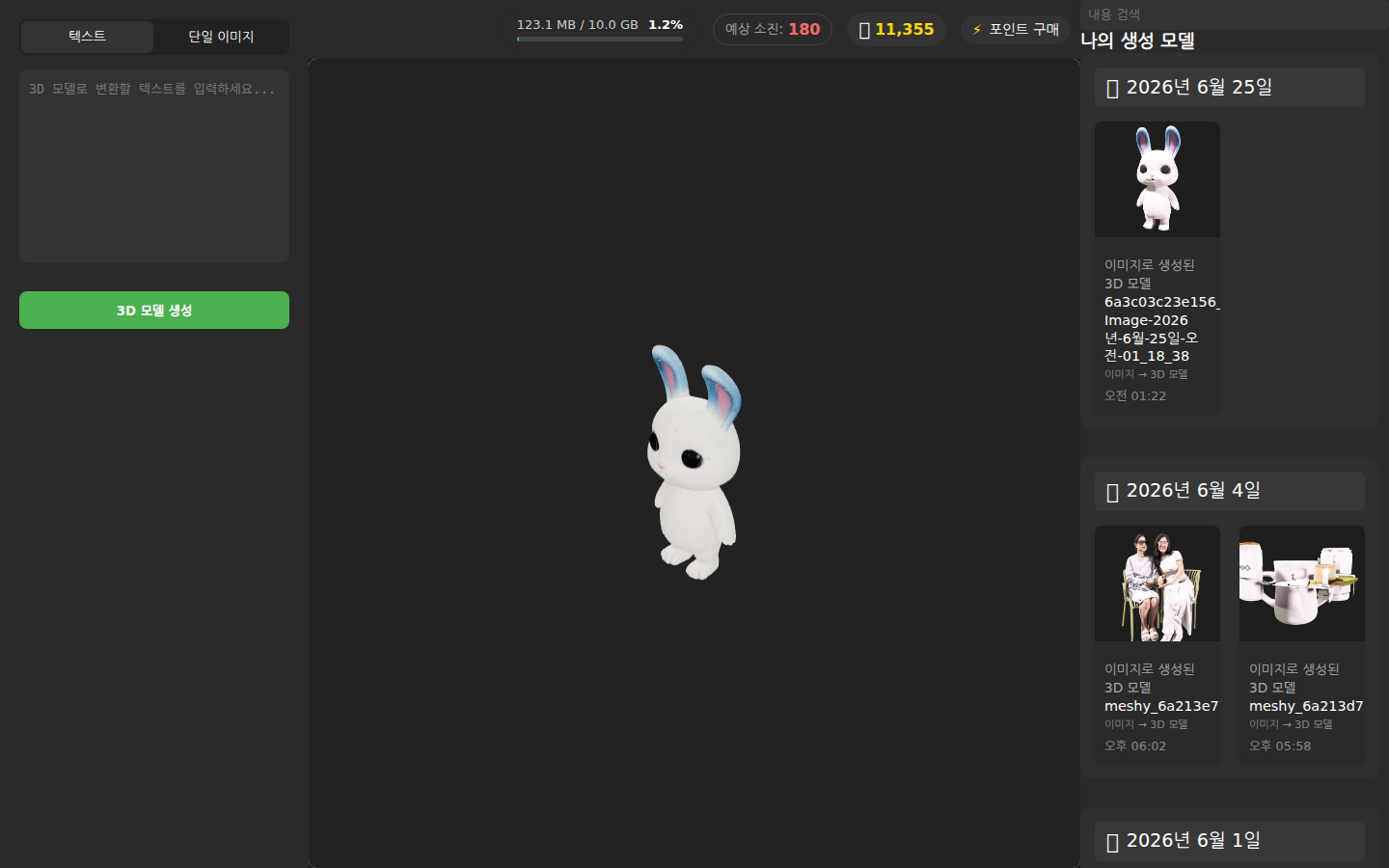
| Make3D | Generate AI 3D models from text or images |
| Text3D | Generate 3D lettering models from typed text |
| AR Studio | Arrange 3D models and audio in one scene and link an AR board |
| Exhibition Gallery | Register exhibition info and build exhibition maps |
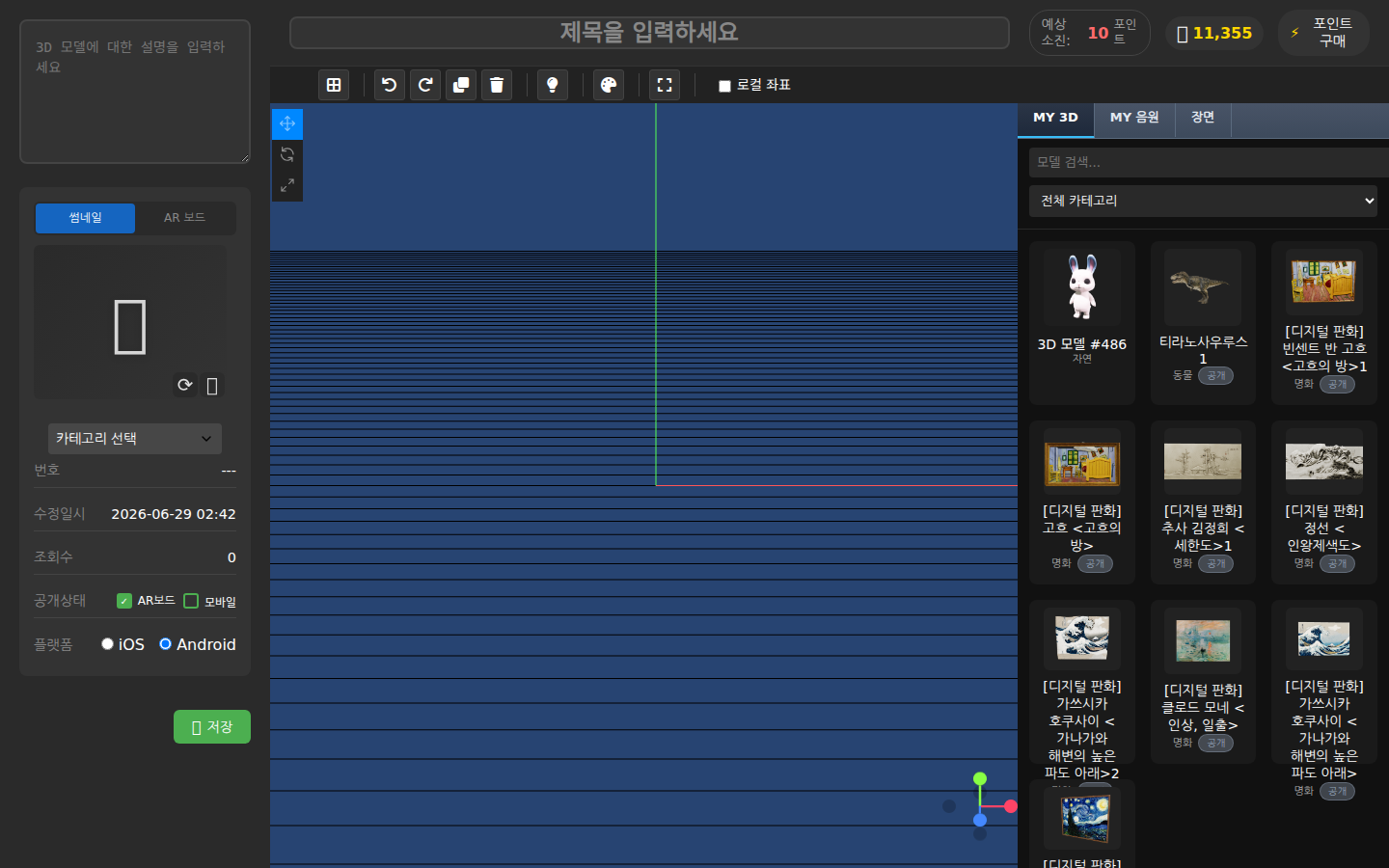
QWhat is the basic AR Studio flow?
- Enter a title, description, and category.
- Set a thumbnail.
- Create a new AR board or select an existing one.
- Add 3D models and adjust position, rotation, and size.
- Add background music if needed.
- Set visibility and platform, then save.
Expanding to VR/MR Shows & Exhibitions
Expand mobile-made content into exhibition maps and VR/MR spaces for immersive show & exhibition experiences. The same content is reused across mobile, web, and VR/MR.
QWhat content can I view in VR/MR?
- 3D models from the 3D Gallery
- AR board scenes made in AR Studio
- AI-generated 3D models
- 3D lettering made with Text3D
- Audio from the Sound Gallery
- Exhibition maps from the Exhibition Gallery
QHow can I use it?
| Field | Use case |
|---|---|
| Exhibition/Gallery | Virtual preview before a real show, remote viewing, permanent virtual gallery |
| Education/Museum | Hands-on learning, walking around artifacts/specimens/structures at real scale |
| Enterprise/Showroom | Virtual showrooms and product briefings with items placed at real size |
| Events/Marketing | Immersive experience booths built from brand 3D content |
| Performance | Performance experiences combining mobile-made 3D/AR content with VR/MR staging |
QWhat devices are supported?
Specific supported VR/MR viewing devices and setup steps may vary by operating environment. Please check the latest supported-device list and connection guide.
Troubleshooting
QIt says “not enough points”.
Your balance may be less than the task cost. Subscribe or buy extra points, then try again.
QIt says “not enough storage”.
Delete content you no longer need. To use more than your plan includes, you need points — space beyond your plan is billed monthly at 10 points per GB. If you run short of points, only new uploads are paused; your existing files are kept.
QThe AR model is not showing.
Check that the AR board is clear, the camera covers the whole board, and the network is stable.
QI can't register or edit content.
Check your login status, membership tier, required fields, and copyright agreement.
QDownloads don't work.
Some 3D model and sound downloads may be available to subscribers only.
QI paid but points/subscription aren't reflected.
Restart the app or try “Restore purchases”. If it persists, contact us with your payment receipt.
QDocuments or work won't save.
Check your remaining storage and network connection, then try again.